

HyperSnap 9.7.5 – Screen Capture


 (17 votes, 3.47 out of 5)
HyperSnap is the fastest and easiest way to take screen captures from Windows screen and full screen games. Also the text capture (TextSnap) from places where normal text copy is not possible.
This application combines the power of a first-class screen capture application with an advanced image editing utility. Wrapped into one easy-to-use tool!
It’s perfect for capturing images that you want to include in your Help system, online tutorials, manuals, training handouts, presentations, marketing materials, Web pages, emails and more.
Captures screens from full-screen games using DirectX/Direct3D technology. Use this program to quickly share a picture-perfect representation of anything on your screen. HyperSnap is versatile and extremely easy-to-use.
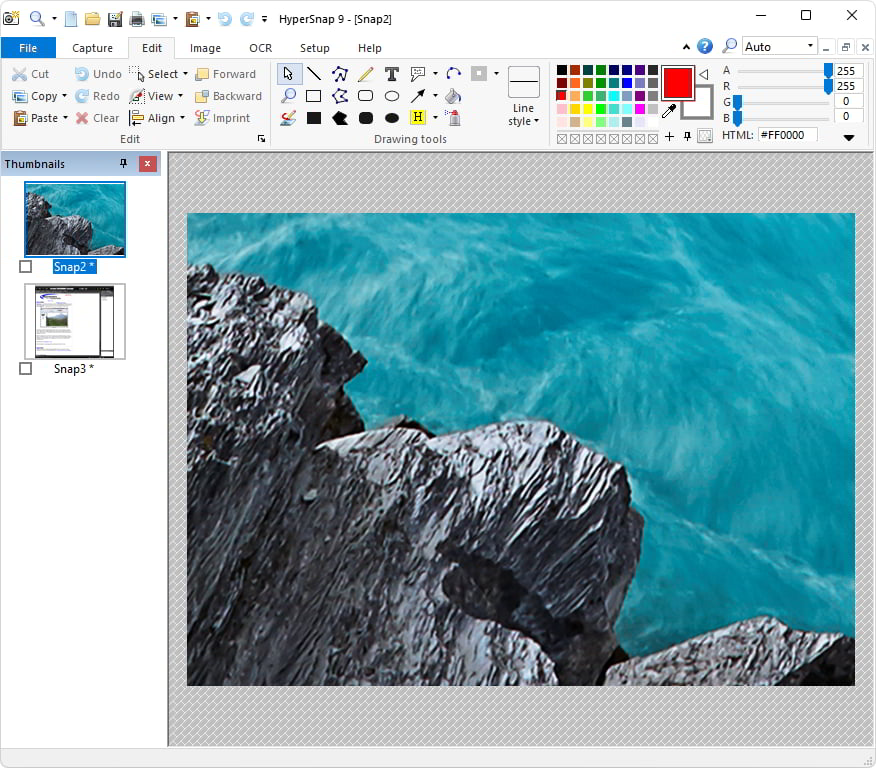
You can switch between modern “ribbon” interface shown on the image above, or tranditional menu and toolbars. Optional HyperSnap portable setup allows you to install it on a portable disk (such as a USB key) and preserves all of your settings and customizations across machines.
Top Features:
- Image captures from any where on the screen or multiple monitors, in any shape or size.
- New and powerful image capture, editing, annotation and manipulation tools.
- Objects drawn over images can now be selected, edited, shown and hidden, moved, deleted any time.
- A new native file format saves the objects drawn for further editing later. Or save a standard image and have the object “imprinted” permanently on them.
- Unlimited undo/redo.
- TextSnap feature to capture editable text from almost anywhere on the screen. Can also capture tab-delimited data for easy paste into MS Excel.
NOTE: TextSnap is no longer supported for new programs using accellerated graphics or running under Windows 8.
- Snags also those difficult-to-grab screens from DirectX and Glide games.
- Image stamps, frames, drop shadow, free-hand capture, FTP server uploads, more.
- Automatic color substitution.
- Non-rectangular window capture.
- Button Capture. Perfect for professional technical writers who need to snap and document dozens of buttons!
- Auto-scrolls and concurrently captures long web pages and other. documents, enabling it to grab more than is visible on the screen.
- Tightly integrates with the MS Windows clipboard to automate repetitive tasks – will even automatically PASTE capture images where needed!
- Automatically saves your captures to graphics files.
- Doubles as effective image viewer, format converter (over 20 image formats supported).
- Fully customizable user interface. Rearrange menus and toolbars any way you want. Assign any keyboard shortcuts you like. Tear off menus to create instant toolbars. Even control HyperSnap with voice commands!
- Extended Window Capture function resizes a window to be much bigger than the screen before the capture – in one quick step, no auto-scrolling.
- Much, much more!
Changes in HyperSnap 9.7.5 (2026-04-02):
- On Print Preview screen added “Page Setup” button to easily change settings.
Changes in HyperSnap 9.7.4 (2026-04-01):
- Fix units for specifying printing margin (mm or inches) on the Page Setup dialog, per system settings
- Guarding and warning the user if margins are too big.
Changes in HyperSnap 9.7.3 (2026-03-13):
- Fix: rare freeze when opening the File menu or sometimes even touching the ribbon
Changes in HyperSnap 9.7.2 (2026-03-03):
- Fix: If a graphics file was opened from Windows folder by drag-drop, it was sometimes impossible to copy it, for pasting elsewhere.
- Fix a problem between Page Setup and Print Preview, and added a Preview button to Page Setup.
Changes in HyperSnap 9.7.0 (2026-01-30):
- Added ability to open HEIC graphics files. There is no save to .heic format though.
Changes in HyperSnap 9.6.1 (2025-12-06):
- Fix: select several thumbnails and right-click – Save selected – Each to its own file – would save only PNG files, no matter which format the user selected.
Changes in HyperSnap 9.6.0 (2025-10-10):
- Page Setup dialog box improved with a bigger preview of the printed page. Additionally worked around the bug in some 64-bit printer drivers (including Microsoft Print to PDF and to Metafile drivers), so even if these printers are selected, Page Setup in 64 bit version works correctly.
New Features in Version 9 – May 2023:
- Auto Backup. All new screen captures, and all images that you edit in HyperSnap, are automatically backed up in the backup folder, and kept there for several days (by default 7 days) before being auto-deleted to free space. No more lost screenshots or image edits on accidental exit of the program, system crash, power outage etc. See more under the File menu – Auto Backup.
- Snap to vertices and segment middles when drawing lines, arrows, rectangles, polygons etc., by holding down the Ctrl key. Shift key may be held down too to limit drawing to horizontal, vertical or 45 degree angles.
- Arrow drawing has a “polyline” mode, which lets you draw a series of connected lines as one object, ending with an arrowhead.
- Text and callout object have new option to center text vertically in the box.
Homepage – https://www.hyperionics.com
Supported Operating Systems: Windows 7, 8, 8.1, 10, 11 (32-bit, 64-bit).
TOP ALTERNATIVES
-
 CorelDRAW Graphics Suite 2026 is the content-rich environment and prof...
 -
 Xara 3D Maker is solely designed to create the highest quality 3D text...
 -
 EdrawMax is the easiest all-in-one diagramming software that serves al...
 -
 XnView is an efficient multimedia viewer, browser and converter. It is...
 -
 Xara Web Designer+ is unlike any web editor you will have seen before....
 -
 Ashampoo Home Design enables users to design, furnish and visualize th...
 -
 WebSite X5 is the most versatile and complete software that lets you c...
 -
 IrfanView is a very fast, small, compact and innovative FREEWARE (for ...
 -
 FreeCAD is a parametric 3D CAD modeler and drawing tool. It is targete...
Leave a Reply
0 Comments on HyperSnap 9.7.5 – Screen Capture